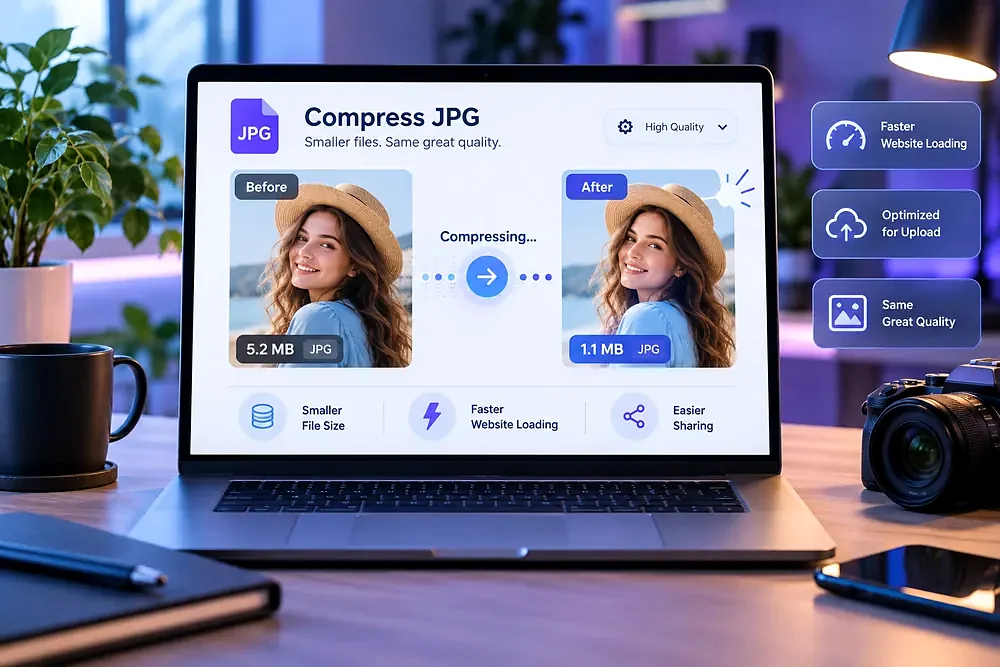
Upload limits are everywhere: government forms ask for passport photos under 100 KB, job sites for CVs and photos under 200 KB, email servers for attachments under a few megabytes. The size is a number of bytes, and you control it by changing three things.
The three levers
- Pixel dimensions. A picture 3 times wider and taller holds 9 times more pixels, and as a rough guide its file will be many times larger.
- Quality setting. Lower quality makes each block of the picture simpler. From our measurements, going from 90 to 80 cut one sample by about 37%.
- Format. WebP is often smaller than JPG, but many forms accept only JPG or PNG.
Step by step: use the target size field
- Open the Image Compressor and add your picture.
- Choose JPG as the output format if the form asks for JPG.
- Type the limit into Target size in KB. To be safe, enter slightly less than the limit, for example 190 for a 200 KB limit, because some systems count a kilobyte as 1,000 bytes and others as 1,024.
- Press Compress image. The tool tries several quality levels, finds the highest one that fits, and if it cannot reach the target it makes the picture a little smaller and tries again.
- Check the result in the preview and download it.
Typical limits and what to do
| Limit | Where you see it | Suggested approach |
|---|---|---|
| Under 100 KB | ID photos, small form uploads | Crop tight, resize to a small size such as 600 px on the long side, then use the target size |
| Under 200 KB | Job portals, profile pictures | Resize to around 1000 px, then target 190 KB |
| Under 500 KB | Email signatures, web banners | Resize to 1200–1600 px, quality around 75–85 |
| Under 1–2 MB | Email attachments, marketplaces | Resize to 2000 px at quality 80–85 |
These are starting points. Required dimensions are often specified by the form, so read its rules first.
Why the “quality only” approach often fails
If a 4000-pixel photo is 4 MB and you need 200 KB, you would have to reduce its quality so far that blocks and colour patches appear. Shrinking the dimensions first lets you keep a much higher quality for the same file size. In our tests, halving the width reduced a sample file by about 72% without touching quality.
What if the picture looks bad?
- Crop away unimportant areas before compressing. For a passport-style photo, the head and shoulders are what matter. Use the Image Cropper.
- Photos with lots of fine detail, such as foliage or crowds, need more bytes than smooth portraits. They will land at a lower quality for the same limit.
- If the picture still looks harsh, try a slightly larger target, or ask whether the form accepts a higher limit.
PNG and screenshots
If your source is a PNG screenshot, converting to JPG can create fuzzy speckles around text. If the form allows PNG, try compressing it as WebP or reducing its dimensions instead. Our guide to PNG vs JPG vs WebP explains the trade-offs.
Privacy when you upload ID photos
Documents and ID photos are sensitive. The Pixetools compressor works entirely in your browser, so the photo is not sent to a server. If you share the photo later, consider removing its location data first.
Try it: Image Compressor
Make photos smaller. Pick a quality or hit a target file size. Free, private, and it runs in your browser.
Open Image CompressorFrequently asked questions
How do I compress a JPG to 100 KB?
Resize it to a smaller size such as 600 pixels on the long side, then enter 100 (or 95 to be safe) in the target size box and compress.
Is 1 KB 1,000 or 1,024 bytes?
Both are used. The Pixetools compressor uses 1,024 bytes per KB. Leave a small margin under the limit to be safe.
Why is my compressed JPG still too big?
Large dimensions are usually the cause. Reduce the maximum width, then compress again.
Does a smaller file always look worse?
Not always. If the original was exported at very high quality, you can often remove most of the data with little visible change.
Can I compress several images at once?
Process them one after another. Each takes only a moment, and nothing is uploaded.