“Compress without losing quality” is a slightly misleading promise. Lossless compression exists, but for photographs it gives modest savings. The big savings come from lossy compression, which throws away detail. The useful question is therefore: how much detail can I throw away before a person looking at the picture at its real display size would notice?
What we tested
We took three small sample photographs (451 to 640 pixels wide) and one synthetic screenshot-style graphic with text. We encoded each in Chrome 141 using the same browser image encoder that powers the Pixetools compressor, at a range of quality settings, and recorded the file sizes. The samples are small, so absolute numbers on a 12-megapixel phone photo will be larger, but the proportions are what matter. File size grows roughly with pixel count for similar content.
Quality vs file size for a photo
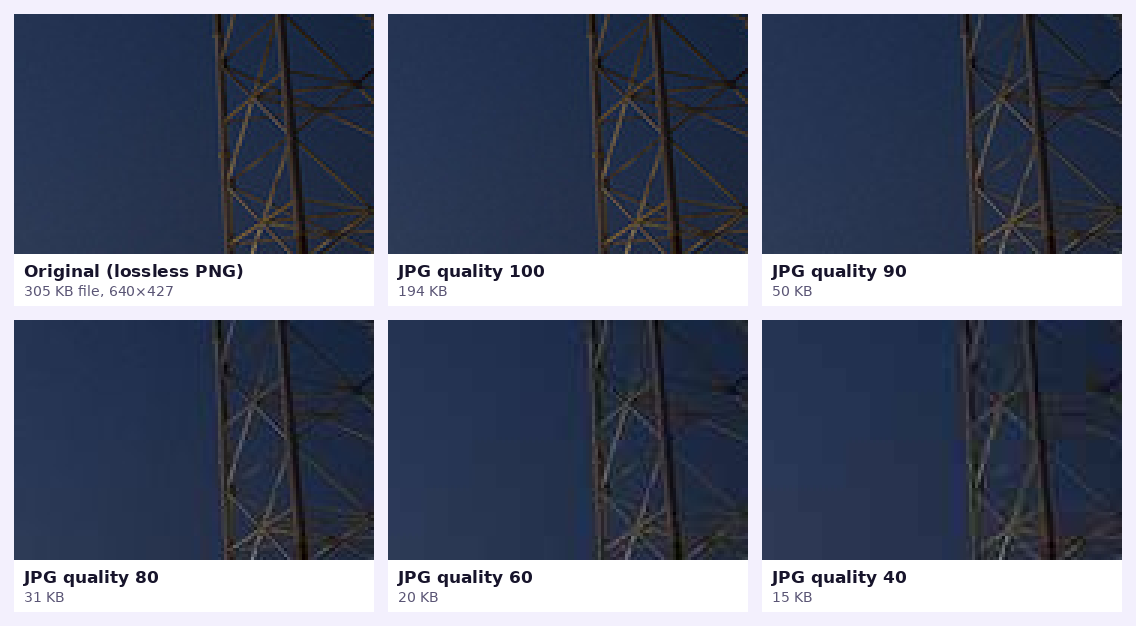
This table shows one sample, a 640×427 photograph with fine detail (steel towers against a dusk sky). Sizes are of the encoded files.
| JPG quality | File size | vs. quality 100 | vs. previous row |
|---|---|---|---|
| 100 | 194 KB | — | — |
| 95 | 68 KB | −65% | −65% |
| 90 | 50 KB | −74% | −27% |
| 85 | 40 KB | −79% | −19% |
| 80 | 31 KB | −84% | −22% |
| 70 | 25 KB | −87% | −21% |
| 60 | 20 KB | −90% | −19% |
| 40 | 15 KB | −92% | −27% |
The first step is the most dramatic. Quality 100 is not “a little better” than 95; it stores a huge amount of detail no one can see, and in this test it was nearly three times the size of quality 95. The savings then become gradual. This is the reason most tools default to somewhere between 75 and 90.
What lowering quality actually does to the picture
JPG splits the image into 8×8 pixel blocks and simplifies each one. At high quality the simplification is gentle. At low quality you start to see three things: blocking (squares visible in smooth areas like sky), ringing (halos next to sharp edges) and colour smearing (colours bleeding across edges). Smooth gradients such as a dusk sky are the first place problems appear, which is why we chose such an image for the test.
Dimensions matter more than quality
The same 640-pixel-wide photo at quality 80 produced these sizes when we scaled it down first:
| Width | Pixels | File size at quality 80 |
|---|---|---|
| 640 px (100%) | 273,280 | 31 KB |
| 480 px (75%) | 153,600 | 17 KB |
| 320 px (50%) | 68,480 | 9 KB |
| 160 px (25%) | 17,120 | 3 KB |
Halving the width removed about 72% of the bytes without touching the quality slider. If an image will be shown 800 pixels wide on your page, a 4000-pixel original wastes most of its data. Resize to the largest size the image will really be displayed at, then compress. If the layout shows the picture at 800 CSS pixels, aim for roughly 1600 pixels wide so it stays crisp on high-density screens, and no more.
JPG, WebP or PNG?
For photos, WebP gave smaller files than JPG at the same slider value in all three samples we tried: about 25% smaller at quality 80 for the dusk photo, about 20% for the coffee still life and about 26% for the cat photo. Caution: the quality numbers of different encoders are not calibrated against each other, so “WebP 80” is not guaranteed to look identical to “JPG 80”. Always look at the result. For screenshots and graphics with text, JPG is often a poor choice, which we cover in PNG vs JPG vs WebP.
A step-by-step workflow
- Crop away what is not needed with the Image Cropper. Fewer pixels means fewer bytes.
- Resize to the largest display size you need, using the Image Resizer.
- Compress with the Image Compressor. Start at quality 80 for photos, or enter a target size in KB.
- Look at the result at the size it will be shown. Zoom into smooth skies, skin and edges. If you see blocks, raise the quality one step.
- Save the original somewhere safe. Never compress your only copy, and avoid compressing an already-compressed file again and again.
When not to compress heavily
- Print files. Printers need detail. Keep quality above 90 and the full resolution.
- Images you will edit later. Edits amplify compression artifacts. Keep a high-quality master.
- Text and logos. Sharp edges show artifacts quickly. Use PNG or lossless WebP, or raise the quality.
Common mistakes
- Exporting at “100%” or “maximum” quality “to be safe”.
- Compressing a 5000-pixel image to 70% when it will be displayed 600 pixels wide.
- Re-saving the same JPG many times. Each save can add more artifacts.
- Using PNG for photographs. In our dusk sample, the lossless PNG was 305 KB, while quality 90 JPG was 50 KB.
A note on PNG from browsers: in the same test, Chrome’s built-in PNG encoder produced a 435 KB file from the sample that a dedicated optimizer had stored at 305 KB. Browser-based tools, including ours, cannot match specialist PNG optimizers. If you need the smallest possible PNG, use a dedicated tool such as one of the open-source command-line optimizers, or convert to WebP.
Try it: Image Compressor
Make photos smaller. Pick a quality or hit a target file size. Free, private, and it runs in your browser.
Open Image CompressorFrequently asked questions
What is the best quality setting for JPG compression?
For photos on websites, 80–85 is a good starting point, and 90 for images where fine detail matters. Always check the result at its real display size.
Does compressing an image reduce its dimensions?
No. Compression changes how data is stored. Resizing changes the pixel dimensions. Doing both gives the smallest files.
Is WebP better than JPG?
In our tests WebP files were about 20–27% smaller at the same slider value. WebP is supported by all current major browsers, but some older apps and upload forms still require JPG.
How much can I reduce an image without noticing?
It depends on the image. Detailed photos can often drop by 70–80% from a maximum-quality export with no visible change at normal size. Flat graphics behave differently.
Is it safe to compress images online?
Choose tools that process files locally. Pixetools compresses in your browser, so the image is not uploaded to a server.