The problem
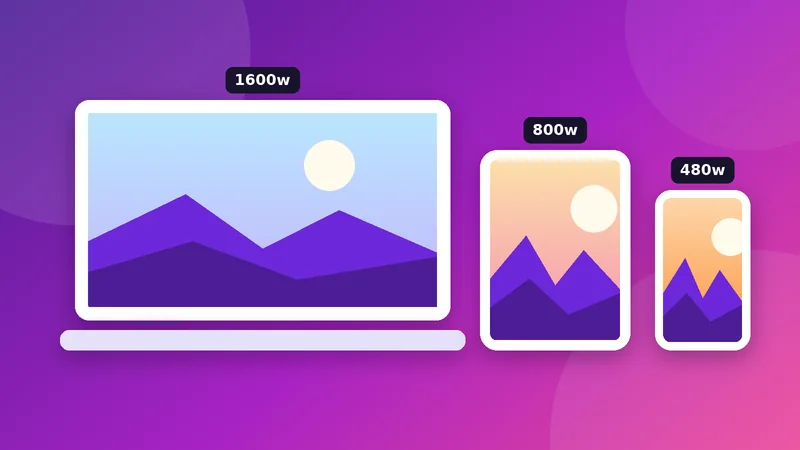
If you serve one 2000-pixel image to everyone, phone visitors download several times more data than they need. If you serve a small one to everyone, large screens see a blurry picture. The solution is to provide a set of sizes and let the browser pick, based on the screen width and pixel density.
1. Basic image with dimensions
<img src="teapot-800.webp"
     width="800" height="533"
     alt="Blue ceramic teapot on a wooden table">
The width and height attributes are the image’s real pixel dimensions. Browsers use them to reserve space before the image loads, which prevents the page from jumping (Cumulative Layout Shift). Make the image fluid with CSS: img{max-width:100%;height:auto}.
2. srcset and sizes
<img
  src="teapot-800.webp"
  srcset="teapot-480.webp 480w,
          teapot-800.webp 800w,
          teapot-1600.webp 1600w"
  sizes="(min-width: 900px) 800px, 100vw"
  width="1600" height="1067"
alt="Blue ceramic teapot on a wooden table">srcsetlists the files and their real widths in pixels (480w).sizessays how wide the image will be displayed. Here: 800 CSS pixels on screens 900 px and wider, otherwise the full viewport width (100vw).- The browser multiplies the displayed width by the device pixel ratio and picks the smallest file that is sharp enough. A phone with a 390 px wide viewport and a pixel ratio of 3 needs about 1170 px, so it picks the 1600 file; a 1× desktop showing 800 px picks the 800 file.
Without sizes, the browser assumes the image fills the viewport and may download a larger file than needed. Writing accurate sizes is the part most people skip.
3. The picture element: formats and art direction
<picture>
  <source type="image/avif" srcset="hero.avif">
  <source type="image/webp" srcset="hero.webp">
  <img src="hero.jpg" width="1600" height="900" alt="...">
</picture>
The browser uses the first source it supports and falls back to the img element otherwise. You can also use media attributes on sources to show a differently cropped picture on phones (“art direction”), for example a tighter portrait crop. If you do not need different formats or crops, plain img with srcset is simpler. To understand which formats to include, see image file formats explained.
4. Lazy loading and priority
<!-- below the fold -->
<img src="a.webp" loading="lazy" decoding="async" width="800" height="533" alt="...">

<!-- main image at the top of the page -->
<img src="hero.webp" fetchpriority="high" width="1600" height="900" alt="...">
loading="lazy" delays loading until the image is near the viewport. Do not use it on the main image at the top, since it will often be your Largest Contentful Paint element. Use fetchpriority="high" there instead.
5. Create the files
For each picture, export a few widths: for example 480, 800 and 1600 pixels. With Pixetools: resize with the Image Resizer, convert with the Image Converter if you need WebP, and compress with the Image Compressor. A quality of 75–85 is a good starting point for photographs, as shown in our measurements.
Common mistakes
- Missing
widthandheight, causing layout shift. - A
sizesvalue that does not match the layout. - Lazy-loading the hero image.
- Providing sizes that are only a little different from each other. Three to five well-spaced widths are enough.
- Using a CSS background image for content that should be an
imgwith alt text.
Testing
Open your browser’s developer tools, choose the Network tab and filter by images. Reload on a narrow screen and a wide one and confirm that different files load. PageSpeed Insights flags oversized images. For the bigger picture of images and speed, read image size and SEO.
Try it: Image Resizer
Resize to exact pixels or to a social media preset. Free, private, and it runs in your browser.
Open Image ResizerFrequently asked questions
What is the difference between srcset and sizes?
srcset lists the available image files with their widths. sizes tells the browser how wide the image will be displayed, so it can choose the right file.
Do I need the picture element?
Only for format fallbacks or different crops per screen size. For ordinary responsive images, img with srcset is enough.
Should every image have loading="lazy"?
No. Use it for images below the fold. The main image near the top should load immediately.
Why do I still need width and height?
They let the browser reserve space before loading, which prevents content from jumping.
Which sizes should I generate?
Often 480, 800 and 1600 pixels wide are a good set, adjusted to your layout.