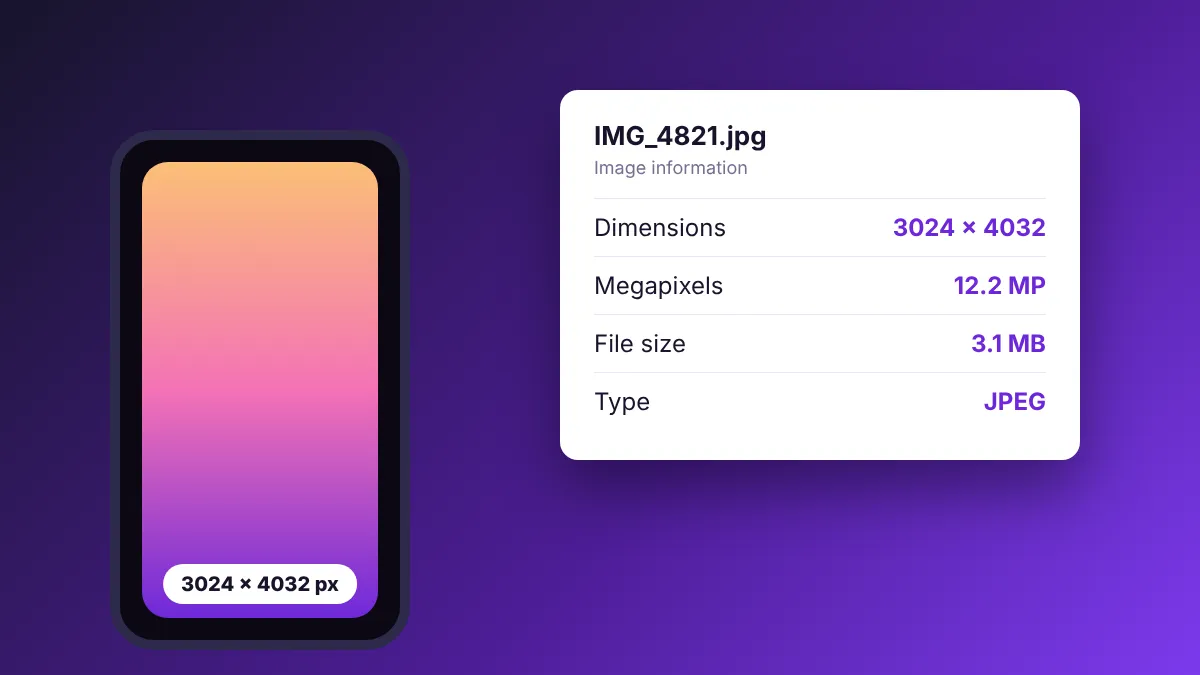
Before you upload a photo to a shop, a job application or a school form, you usually need to know two things: how big the picture is, and how heavy the file is. They sound like the same question, but they are not, and mixing them up is the most common reason an upload gets rejected.
The two sizes of an image
Dimensions (also called resolution or pixel size) are the width and height in pixels, for example 3024 × 4032. They tell you how much detail the picture holds and how large it appears on a screen.
File size is how much storage the file uses, such as 180 KB or 3.1 MB. It depends on the dimensions, but also on the format, the compression quality and how much detail is in the picture.
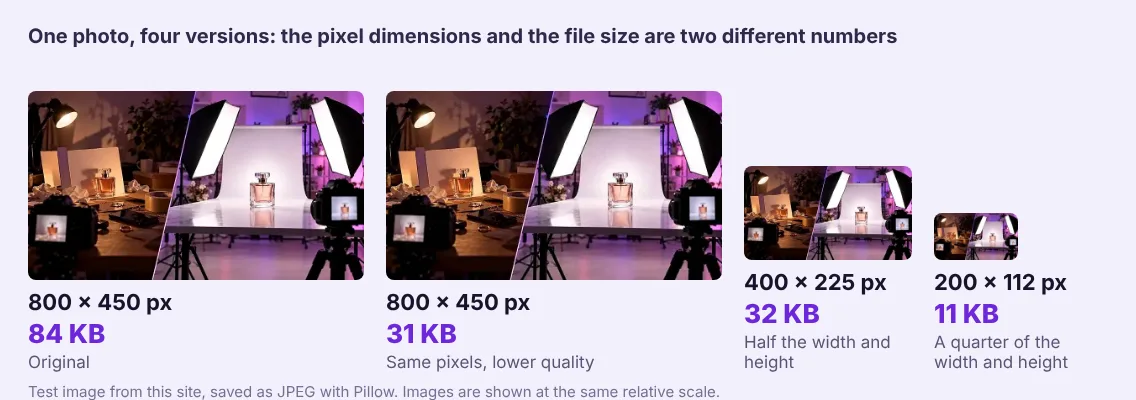
That is why a “small” file is not always a “small” image, and the other way round. If a form says “maximum 200 KB”, it is asking about file size. If a platform asks for “1080 × 1080”, it is asking about dimensions. Our guide to reducing file size covers the first case, and the social media sizes cheat sheet covers the second.
Windows 10 and 11
Method 1: Properties
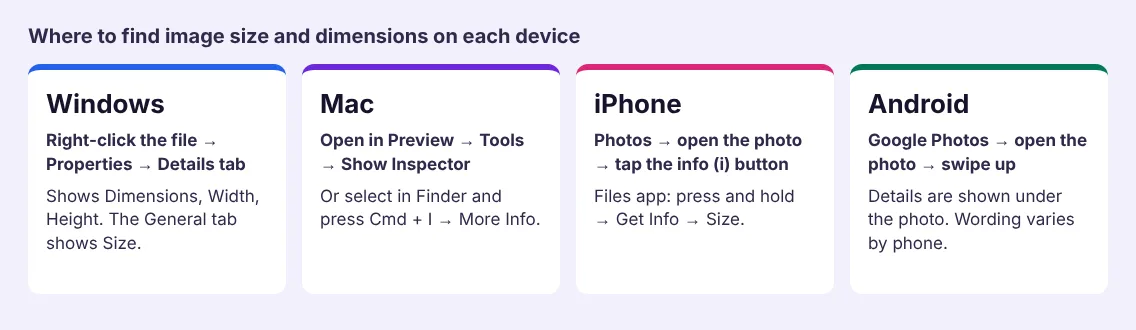
- Right-click the image file and choose Properties.
- On the General tab, read Size for the file size. Size on disk is the space it occupies in storage blocks, which is usually a little larger and is not the number a website checks.
- Open the Details tab. Under Image you will see Dimensions, Width and Height in pixels.
Method 2: Show Dimensions for a whole folder
Open the folder in File Explorer and switch to the Details view. Right-click a column heading and tick Dimensions (use More… if it is not listed). Every image in that folder now shows its size in pixels, next to its file size. The setting applies per folder.
Method 3: Hover
Hover over an image file and wait a moment. The tooltip usually shows the type, dimensions and size. It does not always appear, so use Properties when you need to be sure.
Mac
Preview
- Open the image in Preview.
- Choose Tools → Show Inspector.
- The inspector lists details such as the file size and image resolution. Apple documents the Inspector in its guide on viewing information about PDFs and images in Preview.
You can also choose Tools → Adjust Size… to see the current width and height in pixels before you change anything.
Finder
Select the file and press Cmd + I (Get Info). Look for Size near the top, and open More Info to see Dimensions. Finder’s preview pane (View → Show Preview) can show the same details for the selected file.
iPhone and iPad
Apple’s Photos app has an info panel. Open a photo, then tap the info (i) button at the bottom or swipe up. It shows the file name and the file size. Recent versions of iOS also show the resolution in megapixels and pixels, but the exact layout changes between versions, so if you do not see the pixel dimensions, use one of the options below.
- Files app: press and hold the file, choose Get Info, and read Size. This works for photos saved to Files, not for photos that only live in the Photos library.
- Share as a file: save the photo to Files first, or open it on a computer, where the Windows and Mac steps above work.
- Metadata apps: third-party apps such as Metapho show detailed EXIF data, including pixel dimensions. Install apps only from the App Store and check what permissions they ask for.
Heads up about HEIC. iPhones save photos as HEIC by default, and the file you see in Photos may be converted to JPG when you share it, so the size can change. If you need an exact file, share it as a file and check it again on the device you will upload from.
Android
Steps vary by manufacturer, but most phones use Google Photos or a Gallery app.
- Google Photos: open the photo and swipe up (or tap the info icon) to reach Details. Google’s own help page for this panel only mentions the file name, so what else appears, such as file size and resolution, depends on the version and the phone.
- Samsung Gallery, Xiaomi Gallery and similar: open the photo and tap the ⋮ menu, then Details or Info. These apps usually list resolution and size.
- Files by Google or any file manager: long-press the file, open the menu, and choose File info or Details for the file size.
In a web browser
If the image is on a web page, right-click it and choose Open image in new tab. In Chrome and Firefox the tab title usually shows the file name and its pixel dimensions, such as photo.jpg (1200 × 800). This shows the real size of the file, not the size the page displays it at.
To see both numbers, open the browser developer tools (F12), select the image in the Elements panel and hover over it. Chrome shows the rendered size and the natural size. The natural size is the real file size in pixels, available to scripts as naturalWidth and naturalHeight (see MDN: naturalWidth).
KB, MB and why two apps show different numbers
Computers disagree on what a kilobyte is. Windows counts 1 KB as 1,024 bytes. macOS and iOS count 1 KB as 1,000 bytes. A file that Windows shows as 976 KB may be shown as 1 MB on a Mac. The difference is about 2.4% per step, so never treat a limit as exact if you are within a few percent of it. Leave some room.
Megapixels: a quick way to compare
Megapixels are width × height divided by one million. They let you compare images with different shapes.
| Dimensions | Megapixels | Typical use |
|---|---|---|
| 1080 × 1080 | 1.2 MP | Square social post |
| 1200 × 630 | 0.8 MP | Link preview image |
| 1920 × 1080 | 2.1 MP | Full HD screen |
| 3024 × 4032 | 12.2 MP | Phone photo, portrait |
These are plain arithmetic results. A 12 MP phone photo holds far more pixels than most websites need, which is why photos straight from a phone are often several megabytes. Our pixels, DPI and print size guide explains how the same numbers decide how large you can print.
What to do with the numbers
- The file is too heavy: compress it with the Image Compressor. If it is much larger than the space it is shown in, resize it as well. Our compression guide shows which settings are safe.
- The dimensions are wrong: use the Image Resizer to set exact pixels, or the Image Cropper to change the shape. Do not stretch an image to fit. See aspect ratios explained.
- The format is wrong: convert it with the Image Converter. PNG vs JPG vs WebP explains which to choose.
- You publish the image on a website: pixel size and file size both affect speed. Image size and SEO explains how.
All of these tools run in your browser, so your photo is not uploaded to a server.
Common mistakes
- Reading file size when the form asks for dimensions, or the other way round.
- Enlarging a small image to meet a minimum size. It becomes blurry. Find the original instead.
- Checking the copy you edited rather than the file you will upload. Messaging apps often recompress photos.
- Trusting a screenshot of the info panel. A screenshot has its own dimensions. Check the original file.
Try it: Image Resizer
Resize to exact pixels or to a social media preset. Free, private, and it runs in your browser.
Open Image ResizerFrequently asked questions
How do I check the size of a photo on my iPhone?
Open the photo in Photos and tap the info (i) button or swipe up. It shows the file size, and recent iOS versions also show the resolution. For a saved file, use the Files app, press and hold the file and choose Get Info.
How can I find the pixel dimensions of an image on Windows?
Right-click the file, choose Properties and open the Details tab. Dimensions, Width and Height appear under Image. You can also enable the Dimensions column in File Explorer’s Details view.
What is the difference between image size and file size?
Image size usually means pixel dimensions, such as 1920 × 1080. File size is the storage space in KB or MB. A picture can have large dimensions and a small file size if it is compressed heavily, and the reverse.
Why does my image show a different size on Windows and on Mac?
Windows counts 1 KB as 1,024 bytes, while macOS counts it as 1,000 bytes, so the same file can show slightly different numbers. The pixel dimensions are the same on both.
How many pixels is a 12 megapixel photo?
A 12 MP photo has about 12 million pixels. A typical phone photo is 3024 × 4032, which is about 12.2 million. Megapixels equal width times height divided by one million.
Can I check an image’s size without installing anything?
Yes. Windows and Mac have built-in tools, phones have an info panel in the Photos app, and browsers show the dimensions when you open the image in its own tab.