You export a picture as a PNG and the file is 3 MB. You save the same picture as a JPG and it is 200 KB. Nothing looks different. So why is the PNG so big, and what can you do about it?
The short answer is that PNG and JPG solve different problems. This guide explains the mechanism in plain language, shows measured numbers for six common causes, and gives you a fix for each. If you only want the quick version, read the decision table near the end.
How we tested
We used three test images and measured them with Pillow 12.3 (using the zlib compressor at its strongest setting for PNG, and libwebp for WebP):
- A photograph: an 800×450 desk scene from our own blog.
- A screenshot: a 1280×720 dashboard with text and flat colour, rendered in Chromium.
- A logo: an 800×800 mark with flat shapes and text.
Sizes are in kilobytes (1 KB = 1,024 bytes) and rounded. Different PNG encoders give different results, and browser “Save as PNG” usually produces bigger files than a dedicated optimiser, so your numbers will differ a little. The patterns are what matter. The figures are from our own tests on these three images, not a universal rule. If you want to see the same idea from the format side, our PNG vs JPG vs WebP comparison goes through it with different images.
First, why PNG is big: the short explanation
PNG compresses without losing anything. For each row of pixels it first predicts each value from its neighbours and stores only the difference, then it compresses the result with the same family of method as a ZIP file. When neighbouring pixels are alike, the differences are tiny and repeat, so the file is small. When neighbouring pixels are all slightly different, as in a photograph, the differences are random and there is nothing to repeat.
JPG and lossy WebP work the other way. They throw away detail the eye barely notices, and that is what lets them shrink photos so much. MDN describes the trade-off like this: for screenshots, diagrams, logos and line art, prefer lossless, because blurring and coloured fringes around text and sharp edges are very visible (MDN: image file type guide). So the real question is whether your picture is the kind of image PNG is good at.
Cause 1: it is a photograph
This is the most common reason by far. Photographs are full of smooth colour changes, texture and sensor noise. PNG has to keep all of it.
| Image | PNG | JPG (quality 80) | WebP (quality 80) | WebP lossless |
|---|---|---|---|---|
| Photo, 800×450 | 455 KB | 65 KB | 41 KB | 335 KB |
| Screenshot, 1280×720 | 49 KB | 38 KB | 18 KB | 17 KB |
| Logo, 800×800 | 24 KB | 24 KB | 11 KB | 10 KB |
For the photo, the PNG is about 7 times the size of the JPG and 11 times the size of the WebP. For the screenshot and the logo, the gap is much smaller, and notice that the JPG of the logo is no smaller than the PNG. JPG is not a good fit for flat graphics, and it adds a haze of speckles around text, as we showed in the JPG compression guide.
Fix: if it is a photo and you do not need transparency, convert it to JPG or WebP. In the Image Converter, choose JPG or WebP and a quality around 80 to 85. Compare the preview with the original before you replace anything.
Cause 2: it has more pixels than it needs
File size in PNG follows the pixel count closely. We resized the same photo and saved each as PNG:
| Width × height | Pixels | PNG size | Compared with full size |
|---|---|---|---|
| 800×450 | 360,000 | 455 KB | 100% |
| 600×338 | 202,800 | 294 KB | 65% |
| 400×225 | 90,000 | 148 KB | 33% |
| 200×112 | 22,400 | 45 KB | 10% |
Halving the width removes three quarters of the pixels and shrank this file by about two thirds. A phone photo of 4000×3000 pixels shown in a 800-pixel-wide blog column carries more than 20 times the pixels the screen can show.
Fix: resize to the size it will actually be displayed. A common rule is to export at up to twice the display width so it stays sharp on high-density screens. Use the Image Resizer and set the width. For how browsers pick between sizes, see responsive images in HTML.
Cause 3: invisible noise, grain or dithering
This one surprises people. We took the clean dashboard screenshot and added a tiny random variation to every pixel, ±2 out of 255. You cannot see it. The PNG grew from 49 KB to over 1 MB.
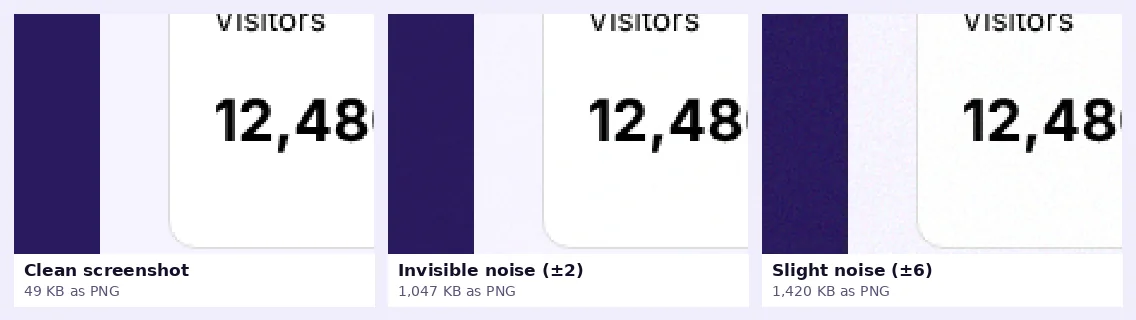
| Version | PNG size | Compared with clean |
|---|---|---|
| Clean screenshot | 49 KB | 1× |
| Noise of ±2 | 1,047 KB | about 21× |
| Noise of ±6 | 1,420 KB | about 29× |
Flat areas compress to almost nothing because every pixel repeats. Random noise has no pattern, so PNG has to store it. The same thing happens with film grain, dithering added by some design tools, AI-upscaler texture, JPEG artefacts that were saved into a PNG, and gradients with built-in noise.
Fix: go back to the clean source and re-export without noise or dithering if you can. If the image is a photo with natural grain, accept it and choose a lossy format. If a screenshot was taken from a compressed video or a photo of a screen, it carries that noise too, and a lossy format is the realistic answer.
Cause 4: an unused alpha (transparency) channel
PNG can store an extra channel for transparency. If your image has no transparent pixels but is saved as RGBA, you pay for that channel anyway.
| Image | Saved as RGB | Saved as RGBA, fully opaque | Extra cost |
|---|---|---|---|
| Photo | 455 KB | 510 KB | about 12% |
| Screenshot | 49 KB | 55 KB | about 13% |
An all-opaque alpha channel is very easy to compress, so the extra cost is modest, around 12 to 13% here. It still adds up across a whole site.
Fix: if you do not need transparency, export without it. Many design tools have a “transparency” or “save as 24-bit PNG” option. If you need transparency, see the section on keeping PNG below. If you are making cut-outs, the Background Remover saves a transparent PNG, and you can then convert the result to WebP in the Image Converter to keep the transparency at a lower size, as described in our background removal guide.
Cause 5: weak compression settings
Not every program tries equally hard to compress a PNG. Many export dialogs favour speed. We saved each image at the weakest and strongest zlib settings:
| Image | Fastest setting | Default | Strongest + optimised | Saved vs fastest |
|---|---|---|---|---|
| Photo | 511 KB | 461 KB | 455 KB | 11% |
| Screenshot | 57 KB | 51 KB | 49 KB | 14% |
| Logo | 35 KB | 26 KB | 24 KB | 31% |
Lossless re-compression helps a little and costs no quality, which is why optimisers such as OxiPNG exist. The gain is typically modest, though, and it is no substitute for fixing the real cause.
Fix: run the PNG through a lossless optimiser. Squoosh, a free open-source app from Google Chrome Labs that runs in your browser, offers PNG optimisation and a colour-reduction option. Note: we have not run Squoosh for this article, so try it on your own file and compare the sizes.
Cause 6: full colour where a limited palette would do
A full PNG stores millions of possible colours per pixel. But a screenshot or a logo may use only a few hundred actual colours. PNG has an indexed (palette) mode that stores a list of up to 256 colours once and then refers to them. MDN describes this as optionally indexed colour like GIF.
| Image | Full colour | 256 colours | 64 colours |
|---|---|---|---|
| Screenshot (878 distinct colours) | 49 KB | 21 KB | 17 KB |
| Logo (668 distinct colours) | 24 KB | 11 KB | 9 KB |
| Photo | 455 KB | 140 KB | 90 KB |
Screenshots and logos lose more than half their size with no visible change. The photo also shrinks a lot, but it is not a free win. Look at the enlarged crop:
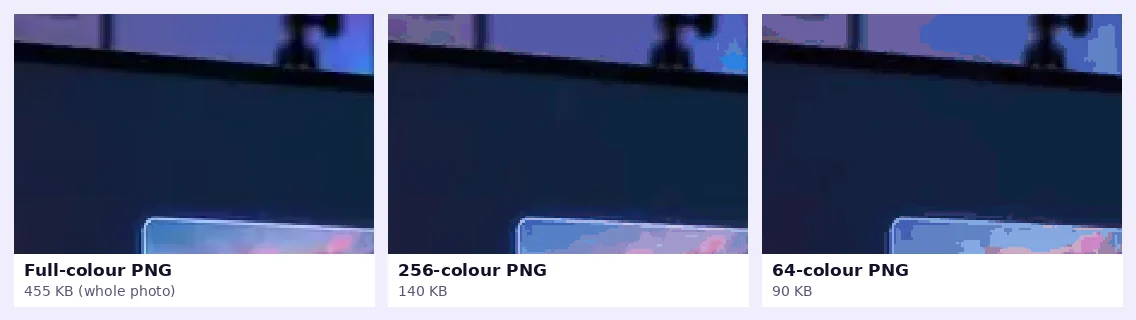
Fix: use palette reduction (also called quantisation) for logos, icons, charts and screenshots with flat colours. Do not use it for photographs, where JPG or WebP will give a smaller file and a better look. The palette results in this article come from our own simple test, so compare results on your own image before you commit.
Which fix should you use? A quick decision table
| Your image | Need transparency? | Best choice |
|---|---|---|
| Photo | No | JPG or lossy WebP at quality 80 to 85 |
| Photo | Yes (a cut-out) | WebP with alpha, or PNG at a reduced size |
| Screenshot or UI | No | Lossless WebP, or palette PNG if the colours are limited |
| Logo or icon (raster) | Yes | Palette PNG or lossless WebP. Consider SVG if you have a vector file |
| Chart or diagram with text | Either | PNG or lossless WebP. Avoid JPG: text gets fuzzy |
| Anything with grain or noise | No | A lossy format. PNG will stay large |
When to keep PNG anyway
PNG is still the right choice in a few cases:
- You need exact pixels, for example for a design handoff, a screenshot used as evidence, or an image you will edit again.
- You need transparency and the destination does not support WebP. WebP does support transparency and, according to MDN, lossless WebP is typically about 26% smaller than the same image as PNG. In our three tests it was 26% smaller for the photo, 66% for the screenshot and 59% for the logo.
- The destination only accepts PNG, such as certain app stores, print workflows or older software.
If the file still has to be a PNG, work through the causes above in order: remove noise at the source, drop the alpha channel if it is unused, resize to the display size, reduce the palette for flat graphics, then run a lossless optimiser.
A five-minute workflow for a typical blog or shop image
- Decide what it is: photo, screenshot, or flat graphic.
- Resize it to roughly twice the width it appears at, using the Image Resizer.
- Convert photos to WebP or JPG with the Image Converter. Look at the preview, then check the size.
- Keep screenshots and logos crisp by using lossless WebP or an optimised, palette-reduced PNG.
- Check the result against the original at 100% zoom, especially text edges and gradients.
- Keep your original in a separate folder in case you need to re-export.
For more on how quality settings change the result and how to hit a specific file size, read how to compress images without losing quality and how to reduce image file size. For the full list of formats and where each one belongs, see our image file formats guide.
What not to do
- Do not rename .png to .jpg. Changing the extension does not convert the file. Always re-save in the new format.
- Do not convert a transparent PNG to JPG without checking the preview. JPG has no transparency, so transparent areas are filled with a solid colour.
- Do not re-save a JPG as a PNG expecting better quality. It will not restore detail that was already lost. It only makes the file larger, because PNG now stores the JPG’s artefacts perfectly.
- Do not compress the same JPG over and over. Each lossy save adds artefacts. Always work from the original.
Try it: Image Converter
Convert between PNG, JPG and WebP in one click. Free, private, and it runs in your browser.
Open Image ConverterFrequently asked questions
Why is my PNG bigger than the JPG of the same picture?
PNG is lossless and stores every pixel exactly. JPG discards fine detail that is hard to see. For photographs, that difference can be a factor of 5 to 10 or more. In our test the same photo was 455 KB as PNG and 65 KB as JPG.
How can I make a PNG smaller without losing quality?
Resize it to the display size, remove any unused transparency, and run it through a lossless optimiser. For flat graphics such as logos and screenshots, a reduced palette often halves the size with no visible change.
Is WebP better than PNG?
For most web use, yes. WebP can be lossless or lossy, supports transparency, and is typically smaller. MDN says lossless WebP is typically about 26% smaller than PNG. Some older tools and workflows still need PNG, so keep one if the destination requires it.
Why does my screenshot PNG take so much space?
Large screenshots with gradients, photos, video frames or subtle noise are hard to compress losslessly. A clean screenshot with flat colours is small. A screenshot of a photo or a video frame is mostly a photo, with the same problem.
Does converting PNG to JPG reduce quality?
Yes, JPG is lossy, but at quality 80 to 90 the loss is hard to see in photographs. It is not suited to text, logos or sharp graphics, where you may see speckles around edges.
Will a smaller PNG load faster on my website?
Usually, yes. Images are often the heaviest part of a page, so smaller files help it load faster, which in turn helps visitors and can help your Core Web Vitals scores. Our image SEO guide explains how.